Getting Started & Account
Get set up and signed in
Accept your invite, verify your email, and get into your Pickle workspace.
Guides and answers to help you get the most out of Pickle.
Accept your invite, verify your email, and get into your Pickle workspace.
Let clinic managers or outside agencies see your candidates and lists without spending credits or making changes.
Add colleagues to your organization and give each the right level of access.
Where to configure your organization — name, team, ATS connections, credits, and billing.
How Pickle fits outbound healthcare recruiting — sourcing clinicians, reaching out, and building relationships through to the hire.
Save a filter set as a preset so you can re-run a recurring search without rebuilding it.
Build a targeted search by location, license, specialty and experience to surface the clinicians who fit your role.
See where clinicians are concentrated to confirm geographic fit and gauge how deep a market is.
Target clinicians at competitor clinics, or exclude employers you can't recruit from.
Save candidates from your search into a named list — one list or several — with duplicates handled automatically.
Filter a list by status, tags, and contact data, tag your prospects, and rename, archive, and restore lists to keep your workspace tidy.
Record calls, emails and texts with an outcome, and leave team-visible notes that follow the candidate.
Copy a direct link to a specific prospect that only people in your organization can open.
Move candidates through your stages — New through Hired — individually or in bulk, so your team shares one view.
Unlock verified email and phone for a single candidate or a whole batch at once.
Know how credits are spent, check your balance and usage, and set expectations for the contact data you get back.
The three ways to contact candidates — one at a time, in bulk, or through your ATS — and how to choose.
Simple habits — personalization, short messages, and testing one thing at a time — that get more replies.
Prepare personalized outreach drafts for a batch of candidates, reviewing each one, then send them individually.
Link your ATS or CRM and push candidates straight into it — no manual CSV import.
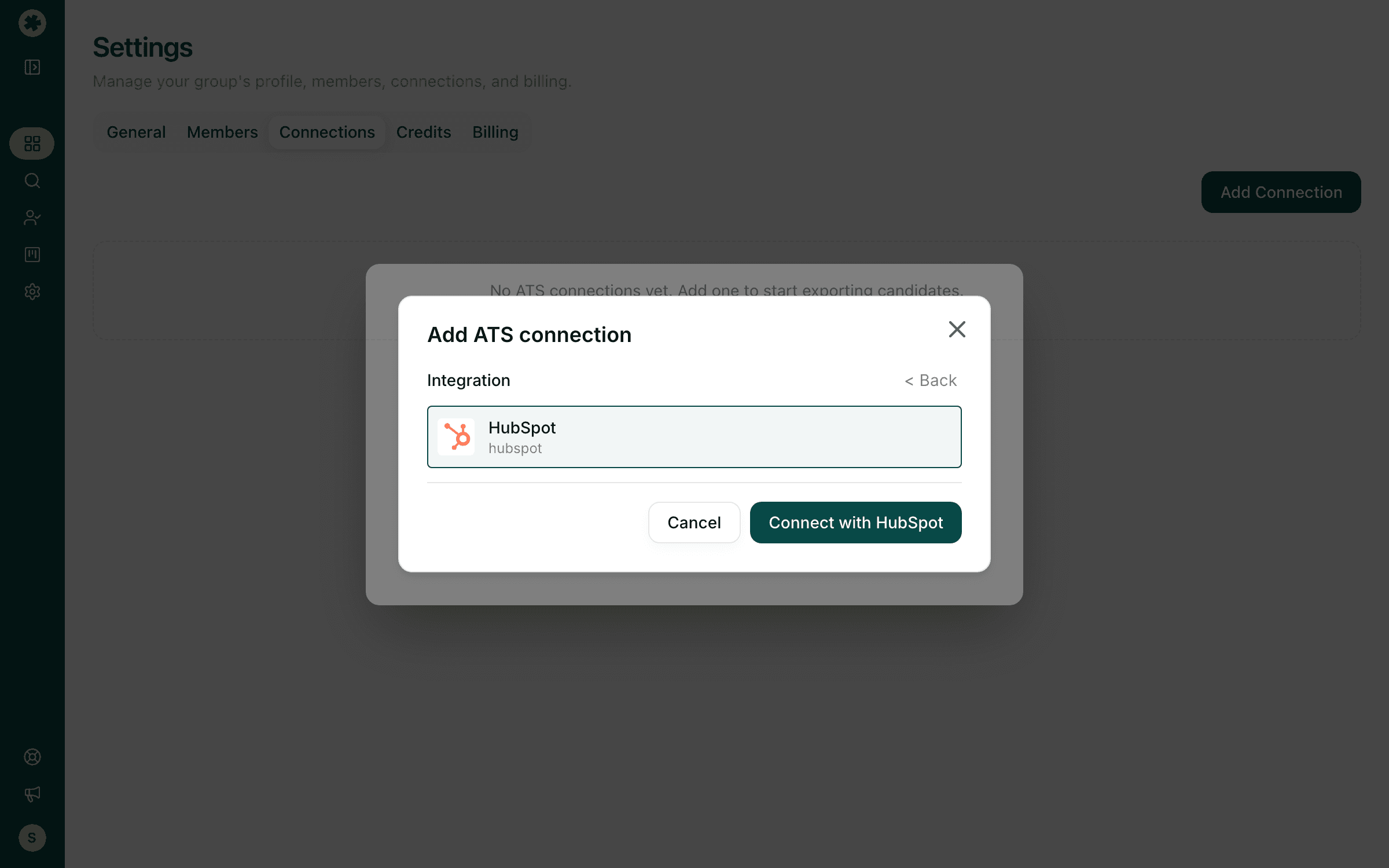
Link HubSpot once, then send prospects in as contacts — matched on email so existing records get updated.
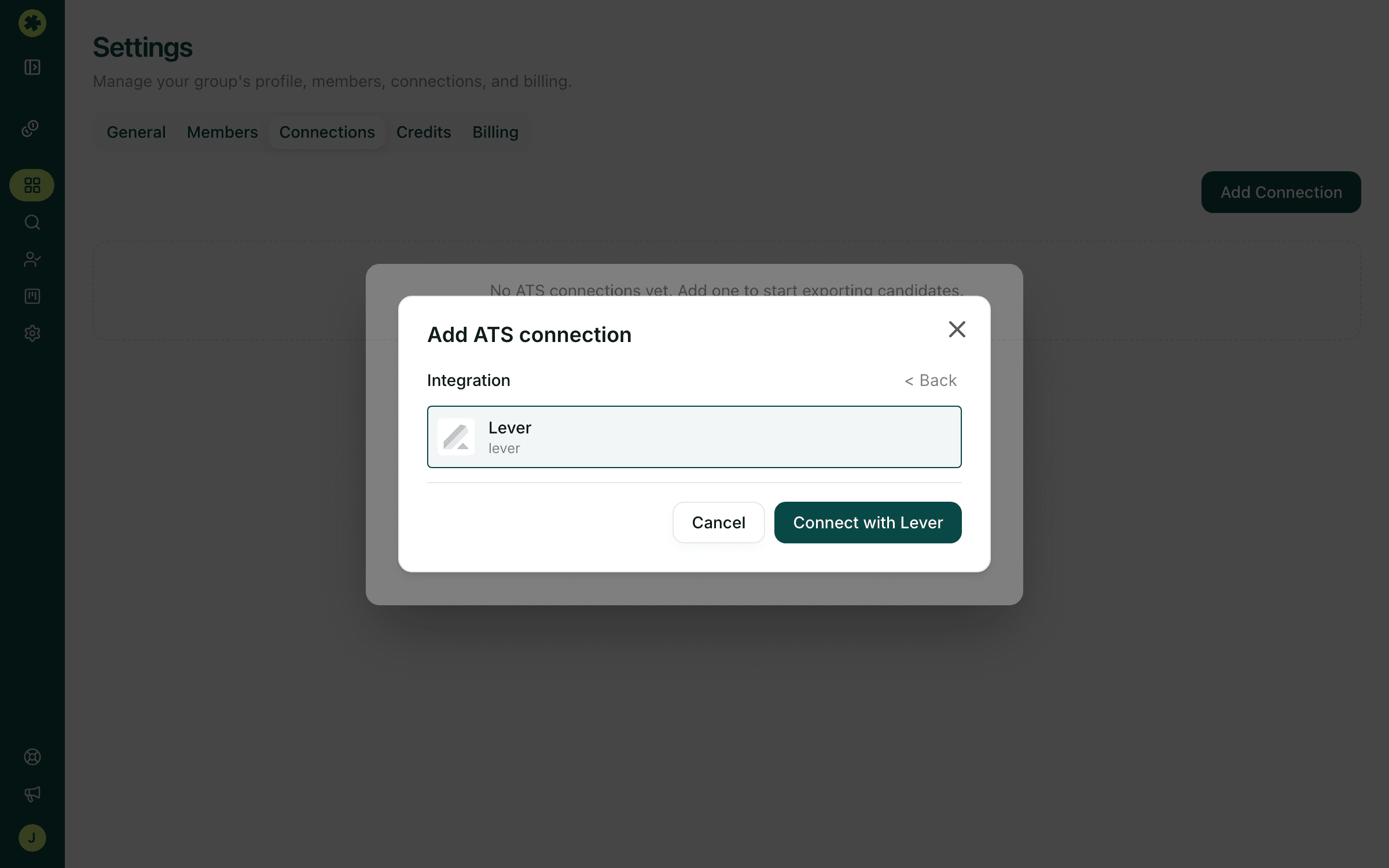
Link Lever once, then send prospects into Lever — to the general pool or straight onto an open posting.
Download your prospects as a CSV in a ready-to-import format for a client, a spreadsheet, or your ATS.