Connect Lever and push to a posting
Link Lever once, then send prospects into Lever — to the general pool or straight onto an open posting.
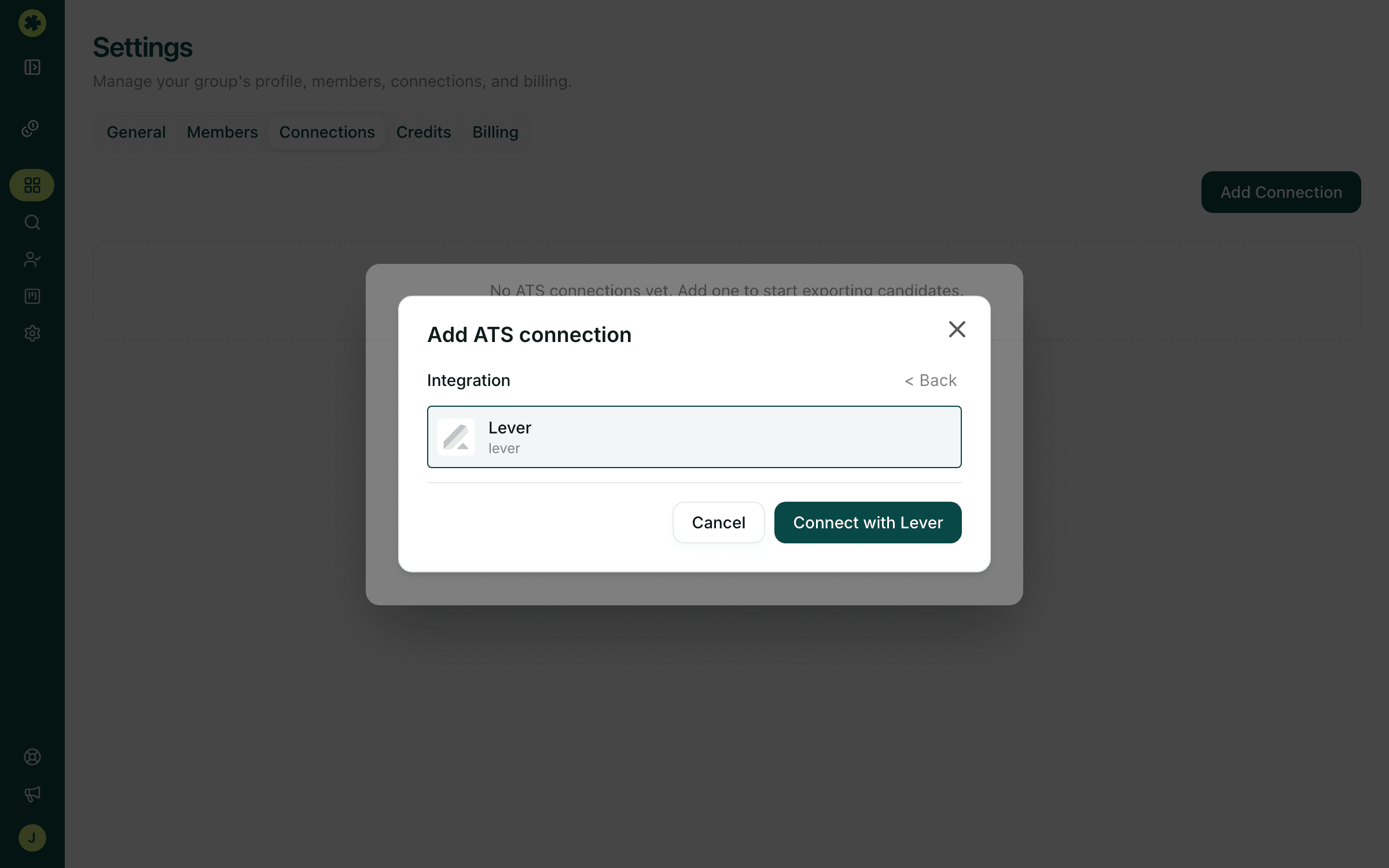
Lever connects through your Lever login — there's no API key to hunt down. Once it's linked you can send candidates from any prospect list into Lever, either into the general pool or straight onto an open posting's pipeline.
Connect Lever
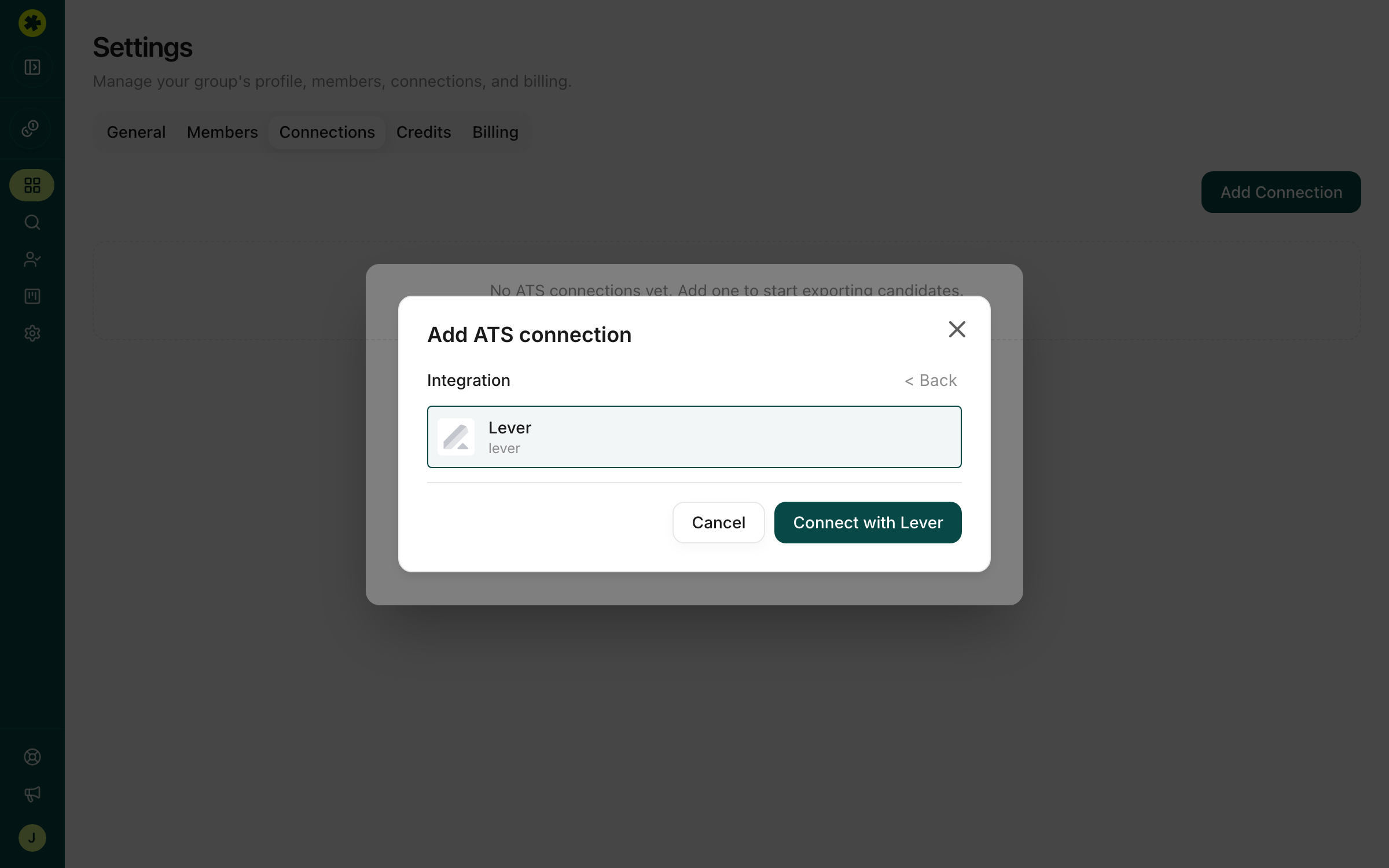
Go to Settings → Connections, click Add Connection, and choose Lever. Instead of a credential form you'll see a single Connect with Lever button. Click it, sign in to Lever if you're prompted, and approve access — the window closes and the connection saves on its own.
Lever uses OAuth, which is the same mechanism behind "Sign in with Google." Instead of you pasting a secret key into Pickle, you sign in on Lever's own page and Lever tells Pickle it's allowed in. Three things follow from that:
- Pickle never sees or stores your Lever password, and there's no key to rotate later.
- Access is scoped — Pickle can send candidates into Lever, not read or change everything in your Lever account.
- You stay in control. You can revoke Pickle's access from inside Lever at any time, and removing the connection in Pickle stops it from the other side.
Two things worth knowing before you click:
- Only Owners and Admins can add a connection. Recruiters can use one that's already set up.
- Candidates Pickle sends are credited to the Lever user who approves the connection, so use an account that will stick around — a recruiting admin rather than a personal login.
Lever then appears under ATS Connections with the date it was linked, ready to use from any list. Your org keeps one Lever connection at a time, so remove the existing one before adding another.
Push candidates to Lever
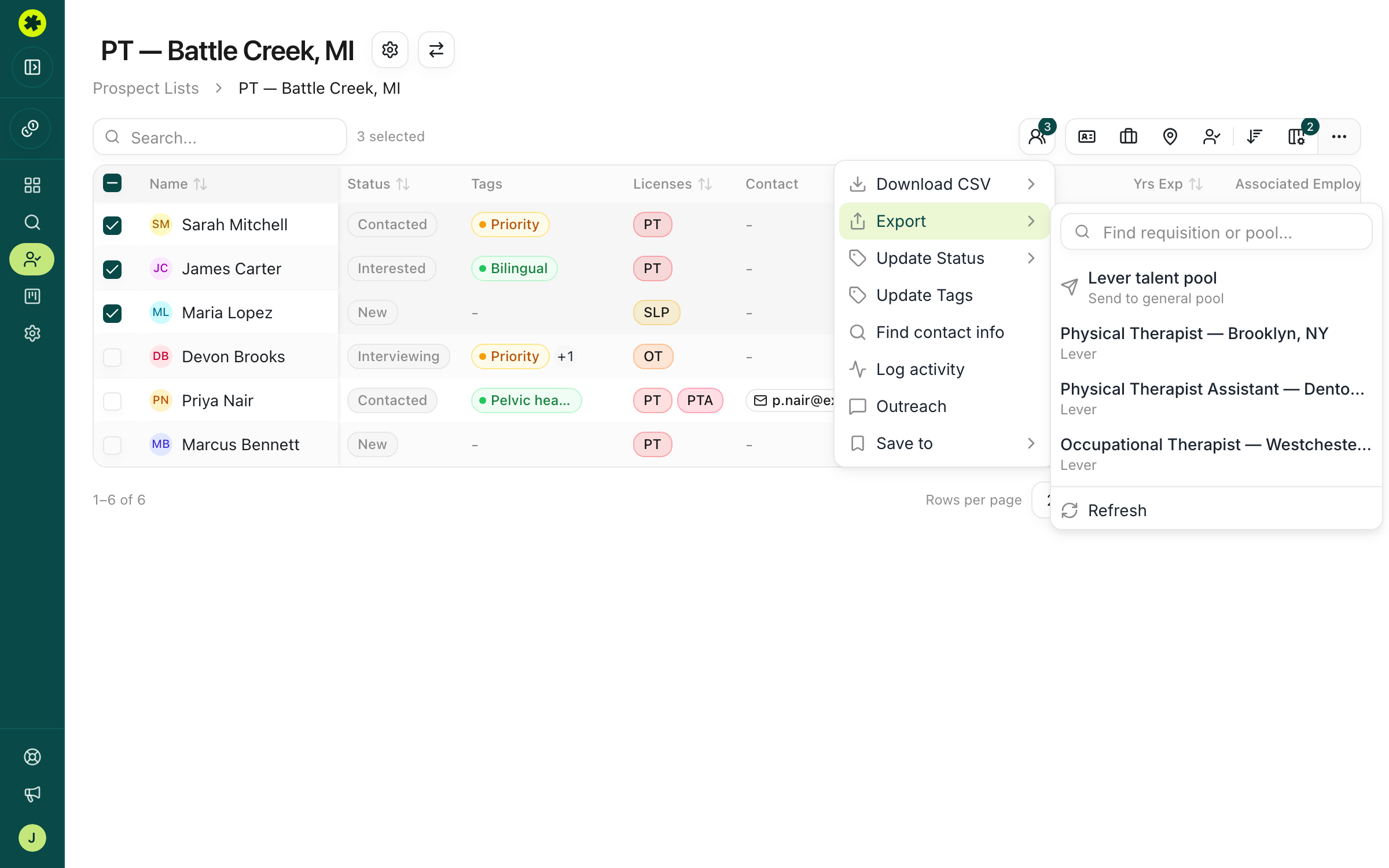
Open a prospect list and check the candidates you want. Click Actions in the toolbar, hover Export, and pick where they should land:
- Lever talent pool — sends them to the general pool (unassigned).
- A posting name — sends them onto that existing posting's pipeline.
Pickle doesn't create postings for you — it only sends candidates into destinations that already exist in Lever. Open postings are listed newest first, including internal ones that aren't on your public careers page. Use Find requisition or pool… to filter a long list, or Refresh to re-pull from Lever. A toast confirms the result — Exported 12 of 12 to Lever — and names the reason for anyone who didn't make it.
What lands in Lever
Each sent candidate carries their name, email, phone, and profile links, along with their Pickle tags plus a Pickle tag so sourced records stay easy to find. Source is set to Pickle and origin to Sourced. Notes and logged contact attempts come across as one dated note, so the history you built in Pickle stays readable in Lever.
Candidates need at least one contact channel — email, phone, or a social profile — or they're skipped. Where there's no email, Pickle sends a placeholder address (pkl+…@test.withpickle.com) because Lever won't accept a candidate without one. Swap it for the real address once you have it.
Troubleshooting
The Export menu only shows "Lever talent pool" — where are my postings?
Click Refresh first. If it's still just the talent pool, either Lever has no open postings or the posting picker isn't switched on for your account yet — the Pickle team can turn it on. Exporting to the talent pool works either way.
Some of my candidates were skipped.
Those candidates have no contact info on file yet. Run Find contact info on them, then export again.
An export failed with a permission error.
The Lever user who approved the connection may have lost access or been deactivated. Remove the Lever connection under Settings → Connections and reconnect as a Lever admin.
Pickle says a Lever connection already exists.
Each org has one Lever connection. Delete the current one under Settings → Connections with the trash icon, then add the new one.
Related articles
Connect and push to your ATS
Link your ATS or CRM and push candidates straight into it — no manual CSV import.
Exporting & ATSConnect HubSpot and push contacts
Link HubSpot once, then send prospects in as contacts — matched on email so existing records get updated.
Exporting & ATSExport candidates to a spreadsheet
Download your prospects as a CSV in a ready-to-import format for a client, a spreadsheet, or your ATS.