How to reach out to a candidate
The three ways to contact candidates — one at a time, in bulk, or through your ATS — and how to choose.
You've found and saved your candidates — now it's time to reach out. There are three ways to do it in Pickle, and which one you pick shapes your steps:
- One at a time, in Pickle — draft and send an individual, personalized message.
- In bulk, in Pickle — draft messages for a batch of candidates in one pass.
- Through your ATS — if your team already runs outreach from an applicant tracking system.
Whichever route you choose, unlock the candidate's contact info first — that's what puts an email or phone number on file to reach them (and the one step that uses credits).
Option 1 — Send one at a time (in Pickle)
Best for high-priority candidates you want to message personally. One thing to know up front: Pickle doesn't send from inside the app — it drafts the message and hands it to your email client or LinkedIn, where you actually send.
Open a prospect list, click a candidate's row to open the Candidate details panel, and click the Outreach tab. The composer sits at the bottom.
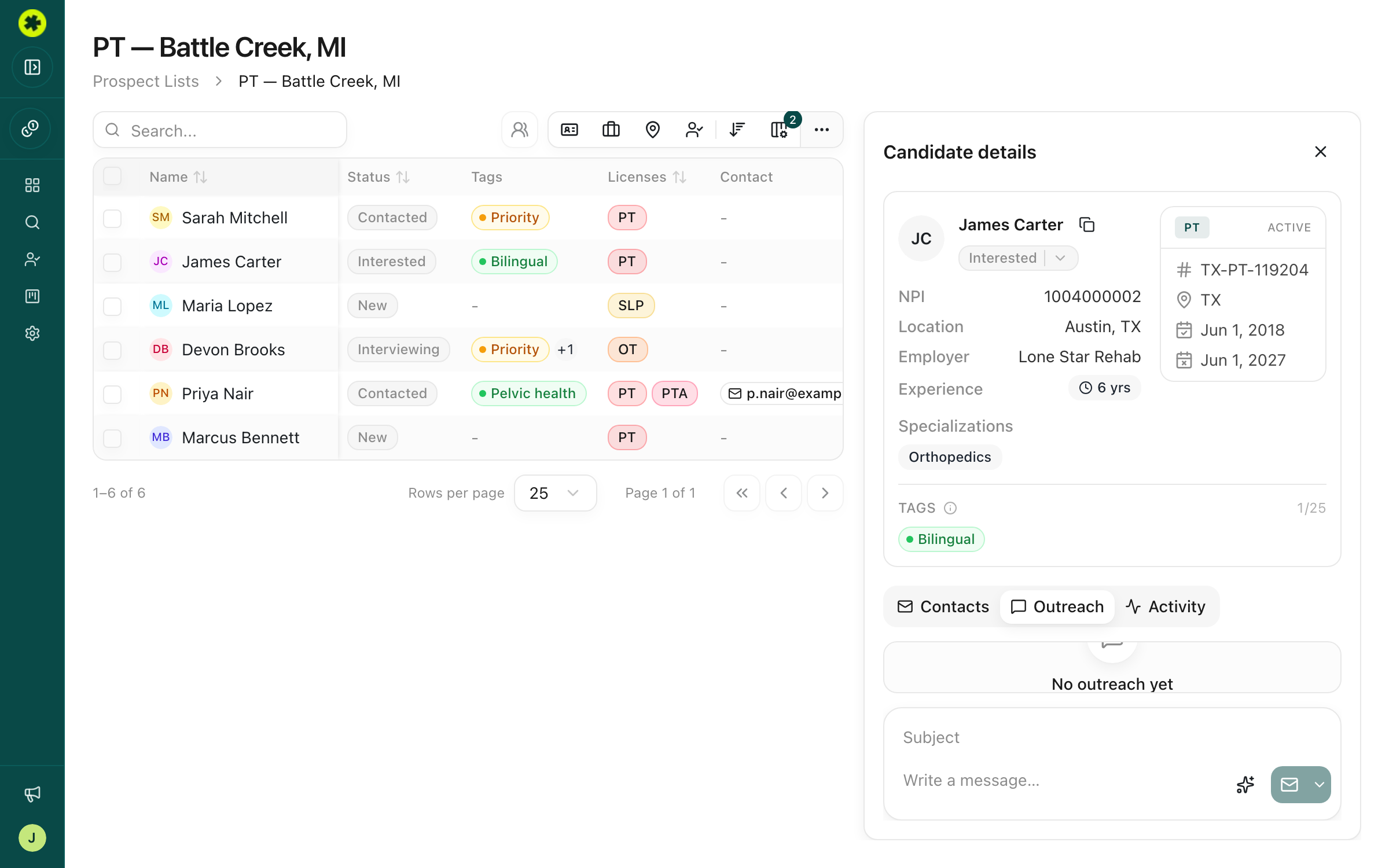
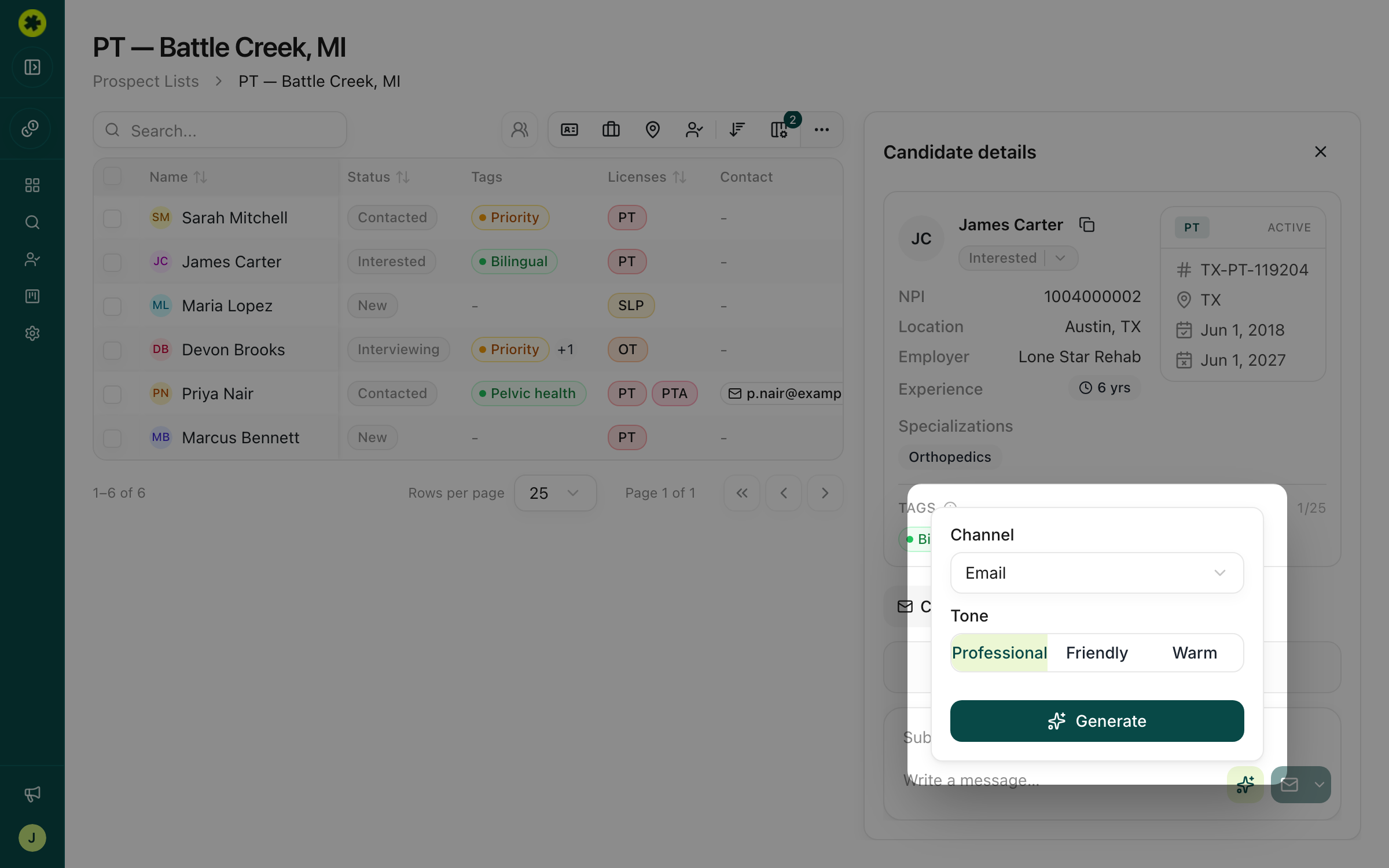
Draft with AI. Click the sparkle icon to open the generator, then pick a Channel (Email, SMS, Voicemail, LinkedIn Message, or LinkedIn Connection) and a Tone (Professional, Friendly, or Warm) and click Generate. Pickle drafts a message from the candidate's license, location, specialization, and employer. Re-generate to compare tones, or skip the AI and type your own — the manual composer is always available.
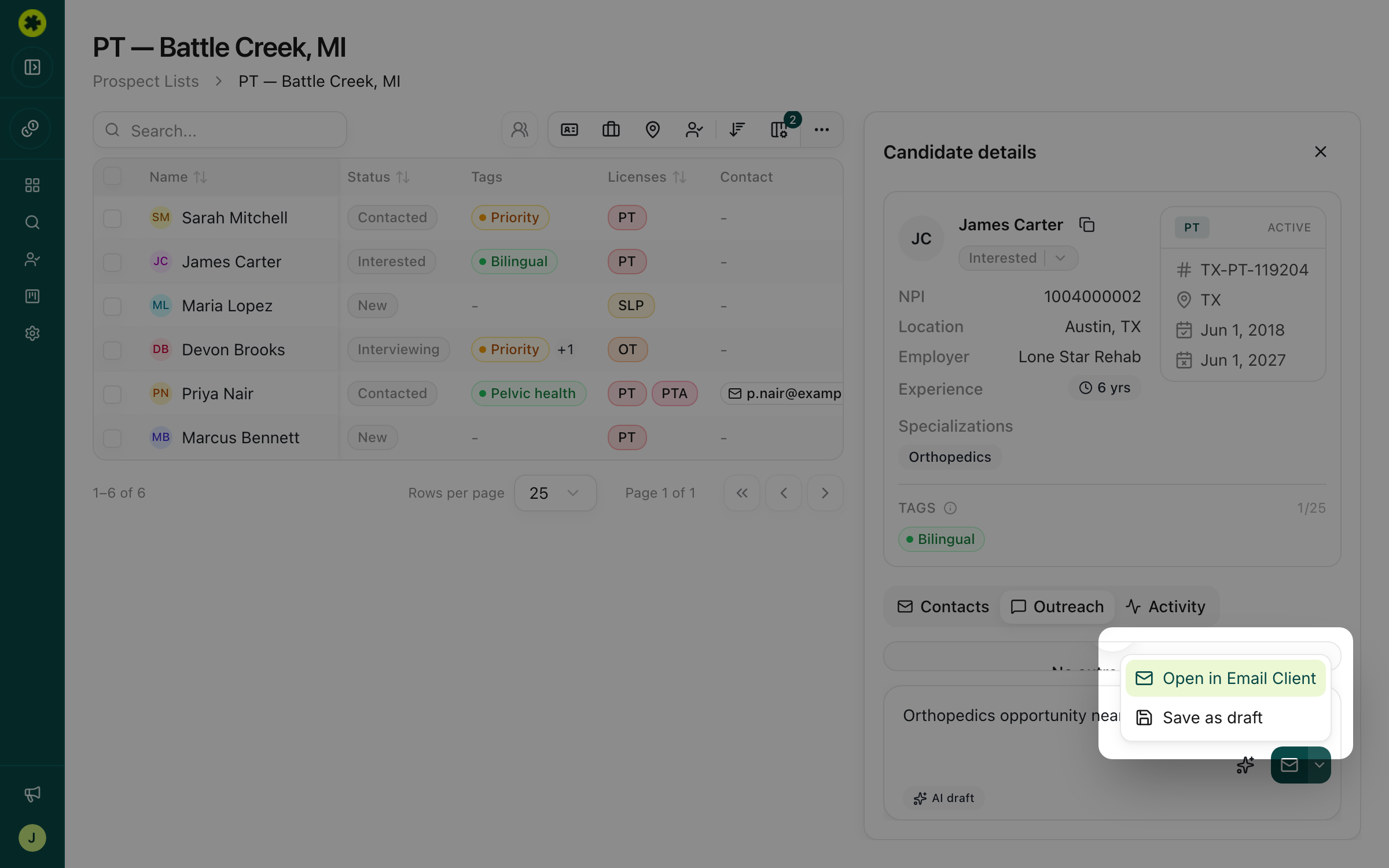
Send it. Use Choose submit action for the channel-specific option:
- Email → Open in Email Client — Pickle opens your email client with the message pre-filled; you send from there.
- LinkedIn → Copy & Open LinkedIn — Pickle copies the draft and opens the candidate's LinkedIn profile to paste it (the candidate needs a LinkedIn profile on file).
- Save as draft — keep it without sending.
Sending doesn't spend credits. Afterward the message logs in the Outreach tab and the candidate's status may move to Contacted. For tips on getting replies, see improve your response rate.
Option 2 — Send to a batch at once (in Pickle)
When you've got a whole list to work through, use bulk outreach. It steps through your selected candidates one at a time so you can review and personalize each draft, then saves them so you can send. See reach out to many candidates at once for the full flow.
Option 3 — Reach out through your ATS
If your team runs outreach and hiring from an ATS or CRM, get the candidates there rather than messaging from Pickle. Two ways to do it:
- Export a CSV with their contact data and import it into your ATS — see export candidates to a spreadsheet.
- Push candidates directly into a connected ATS — see connect and push to your ATS.
Either way, unlock contact info first so emails and phone numbers come across with the records.
Troubleshooting
I clicked send but nothing actually sent.
That's expected — Pickle prepares the message and hands off. Open in Email Client opens your email app with the draft pre-filled, and Copy & Open LinkedIn copies it and opens the profile. Finish the send in that email client or on LinkedIn.
The send option is greyed out, or a channel isn't available.
You need contact info for that channel first — an email address to send email, a LinkedIn profile to use LinkedIn. Purchase contact info for the candidate, and the matching send options unlock.
Related articles
Get a candidate's contact info
Unlock verified email and phone for a single candidate or a whole batch at once.
OutreachReach out to many candidates at once
Prepare personalized outreach drafts for a batch of candidates, reviewing each one, then send them individually.
Exporting & ATSConnect and push to your ATS
Link your ATS or CRM and push candidates straight into it — no manual CSV import.