Give limited or view-only access
Let clinic managers or outside agencies see your candidates and lists without spending credits or making changes.
Sometimes you want a hiring manager, clinic director, or outside recruiting agency to see your candidates and lists — but not spend your credits or change anything. That's what the Viewer role is for.
Invite someone as a Viewer
Follow the usual invite flow — Settings → Members → Invite Member — and set the Role to Viewer before sending. They'll get the same invitation email and land in a read-only version of your workspace.
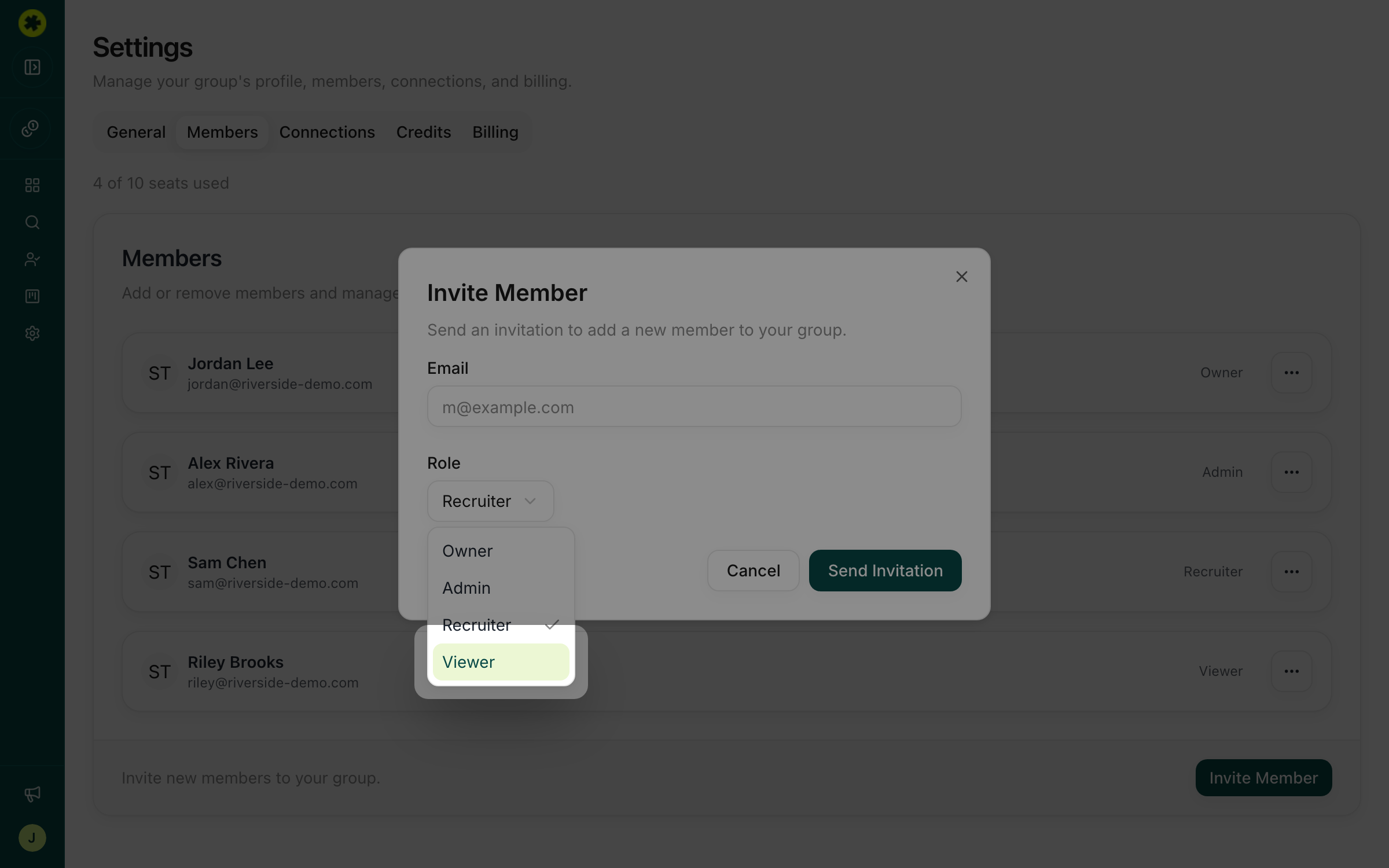
What a Viewer can and can't do
A Viewer can see your prospect lists, candidate profiles, notes, activity, and outreach history — so they're great for reviewing shortlists or keeping a manager in the loop. A Viewer can't spend credits (no contact-info lookups), change a candidate's status, edit anything, or touch org settings. That means handing out view-only access carries no risk to your credit balance.
Turn an existing member into a Viewer
Already invited someone with more access than they need — say an agency you want to dial back? On the Members page, open the ··· menu next to their name, choose Update Role, and set them to Viewer.
Troubleshooting
I want an agency to help but not burn through our credits.
Invite them as a Viewer. They can review candidates and lists, but the contact-info lookups that spend credits aren't available to them.
A viewer says they can't update a status or send outreach.
That's expected — the Viewer role is read-only by design. If they need to take actions, change their role to Recruiter from the Members page.
Related articles
Invite teammates and set permissions
Add colleagues to your organization and give each the right level of access.
Contact Info & CreditsUnderstand credits and contact-data quality
Know how credits are spent, check your balance and usage, and set expectations for the contact data you get back.