Search for clinicians in your market
Build a targeted search by location, license, specialty and experience to surface the clinicians who fit your role.
Search is where you find people in Pickle. It browses the full database of licensed healthcare professionals, and you narrow it with filters until you're left with a relevant shortlist. (Your Prospect Lists are separate — that's where you organize and work the people you've found. If you're trying to filter and nothing happens, you're probably on the wrong screen — see Troubleshooting below.)
Open Search
Click Search in the left sidebar. You'll land on the Candidate Search page showing every candidate your plan covers. Each row shows the candidate's name, licenses, location, specializations, focus areas, employer, whether their license is active, years of experience, and any prospect lists they're already on.
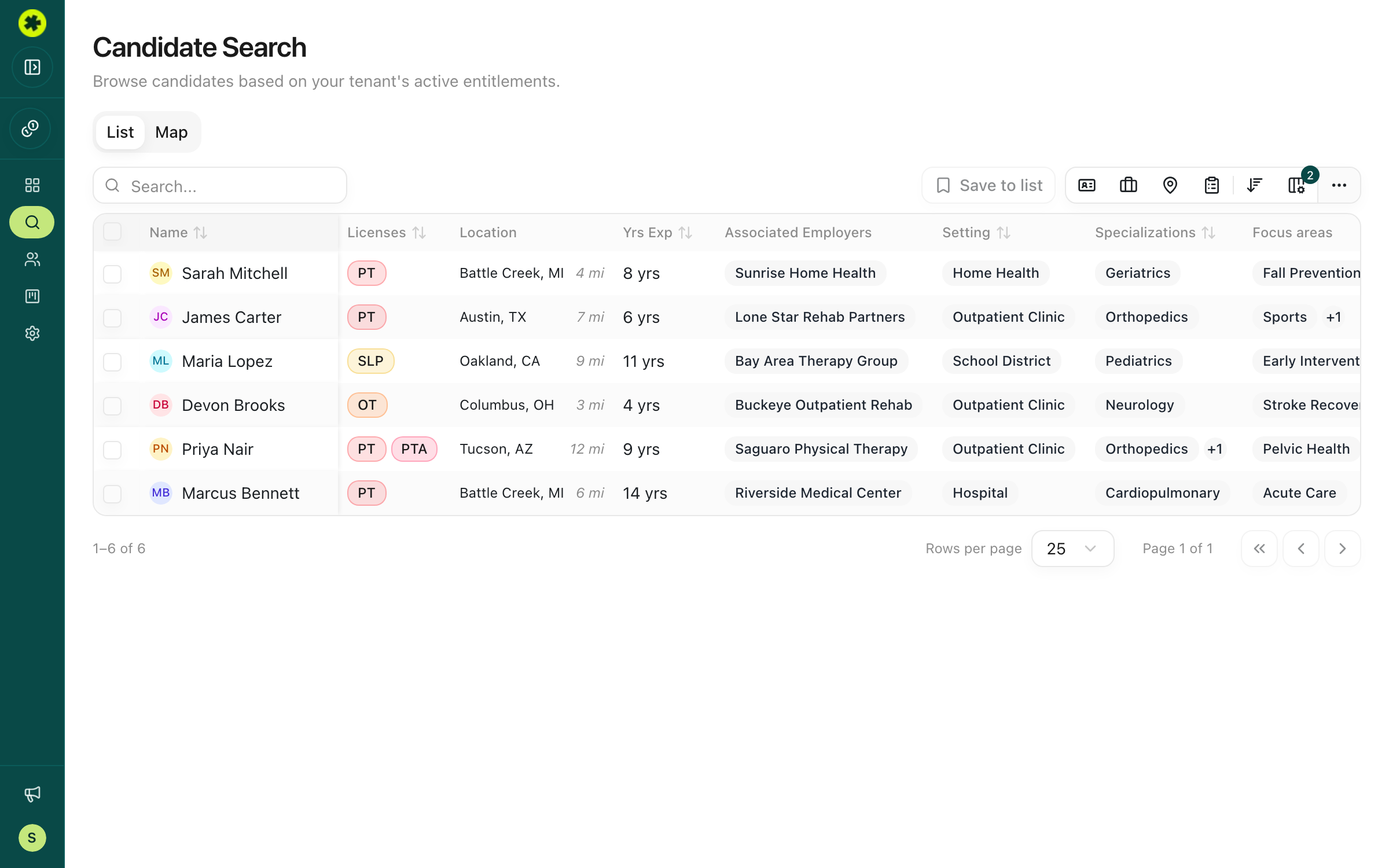
Filter by license, specialty and experience
Click the License filters button (ID-card icon) in the toolbar. Start with the basics:
- License category — PT, PTA, OT, OTA, SLP, RN, NP, MD, and more
- State — the state the license was issued in
Click Show advanced license filters for Status (Active, Expired), Specialization (e.g. Orthopedic, Pediatric), Focus areas (e.g. Home Health, Pelvic Health), and issue/expiration date ranges. For experience, open the Employment filters (briefcase icon) and use the years-of-experience range.
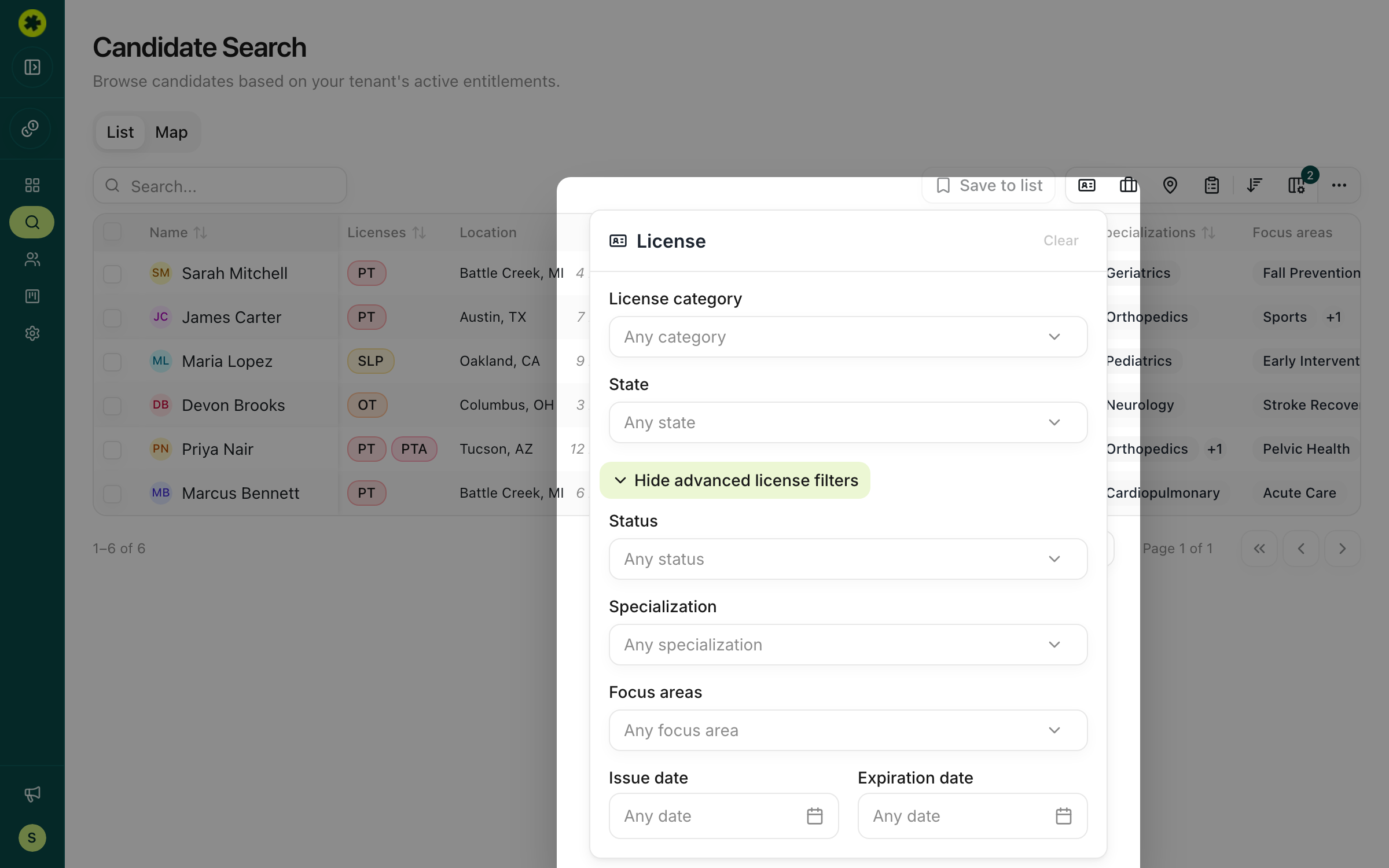
Results update as you change filters, and the badge on each filter button shows how many filters are active in that group. Click Clear at the top of a panel to reset it.
Target — or exclude — specific employers
In the Employment filters panel you can filter by employer. Use the include option to source clinicians from a competitor clinic, or the exclude option to screen out employers you can't recruit from (for example, your own current staff).
Narrow by location
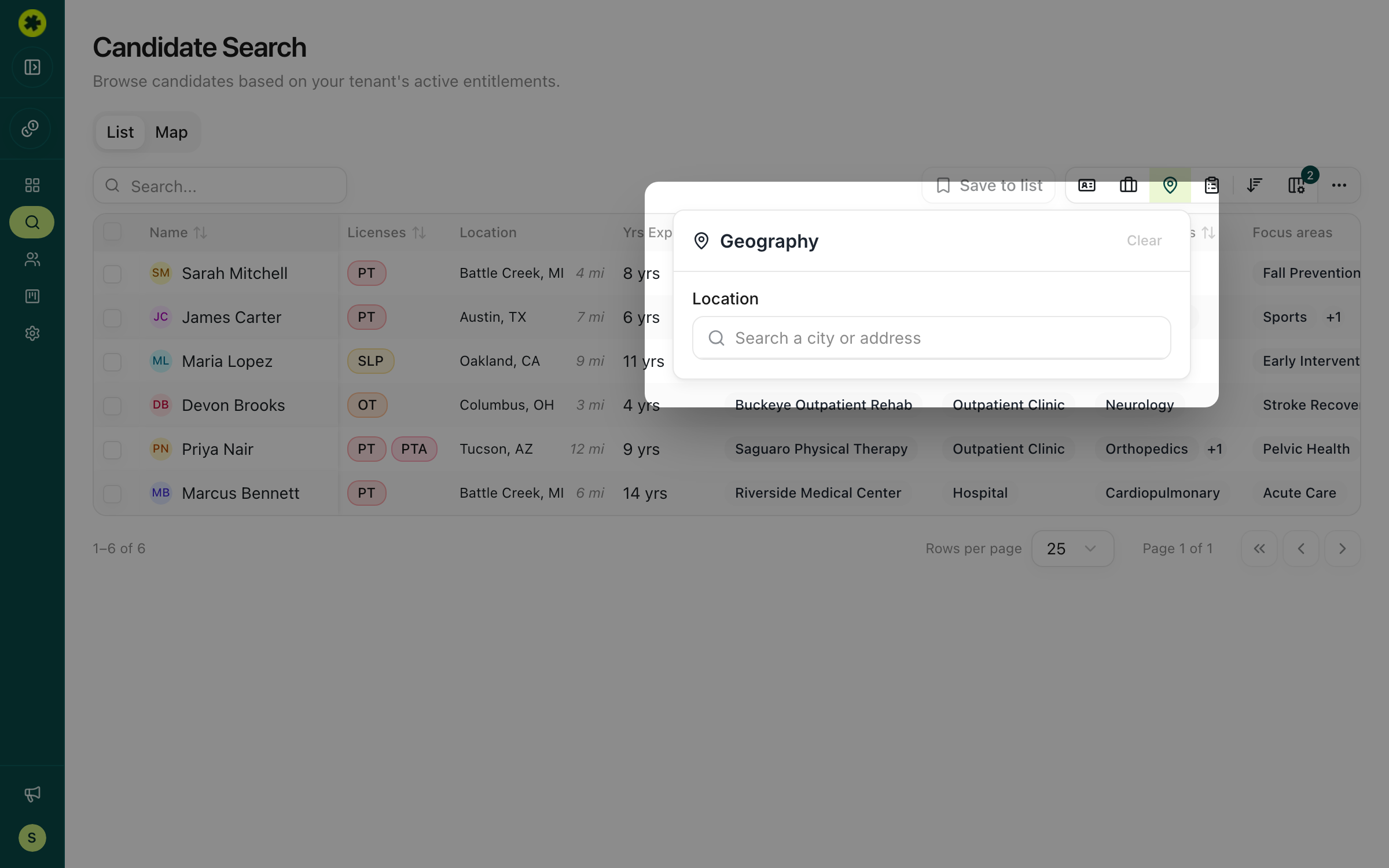
Click the Geography filters button (pin icon) and enter a city or address. A map appears so you can set a radius around that point and find clinicians who live or practice nearby. Switch the results between List and Map views using the toggle above the table — the map is handy for confirming geographic fit and seeing how deep a market is.
Review candidates and open a profile
Click any candidate's row to open their full profile in a side panel — licenses and credentials, professional history, specializations, and focus areas — without leaving your search or losing your filters. Click any column header to sort, and use the Columns button to show or hide columns.
Save the ones you want
Check the box next to each candidate you want to pursue (select as many as you like), then click Save to list in the toolbar to add them to a prospect list. See build a shortlist of candidates for the full flow.
Save a search you run often
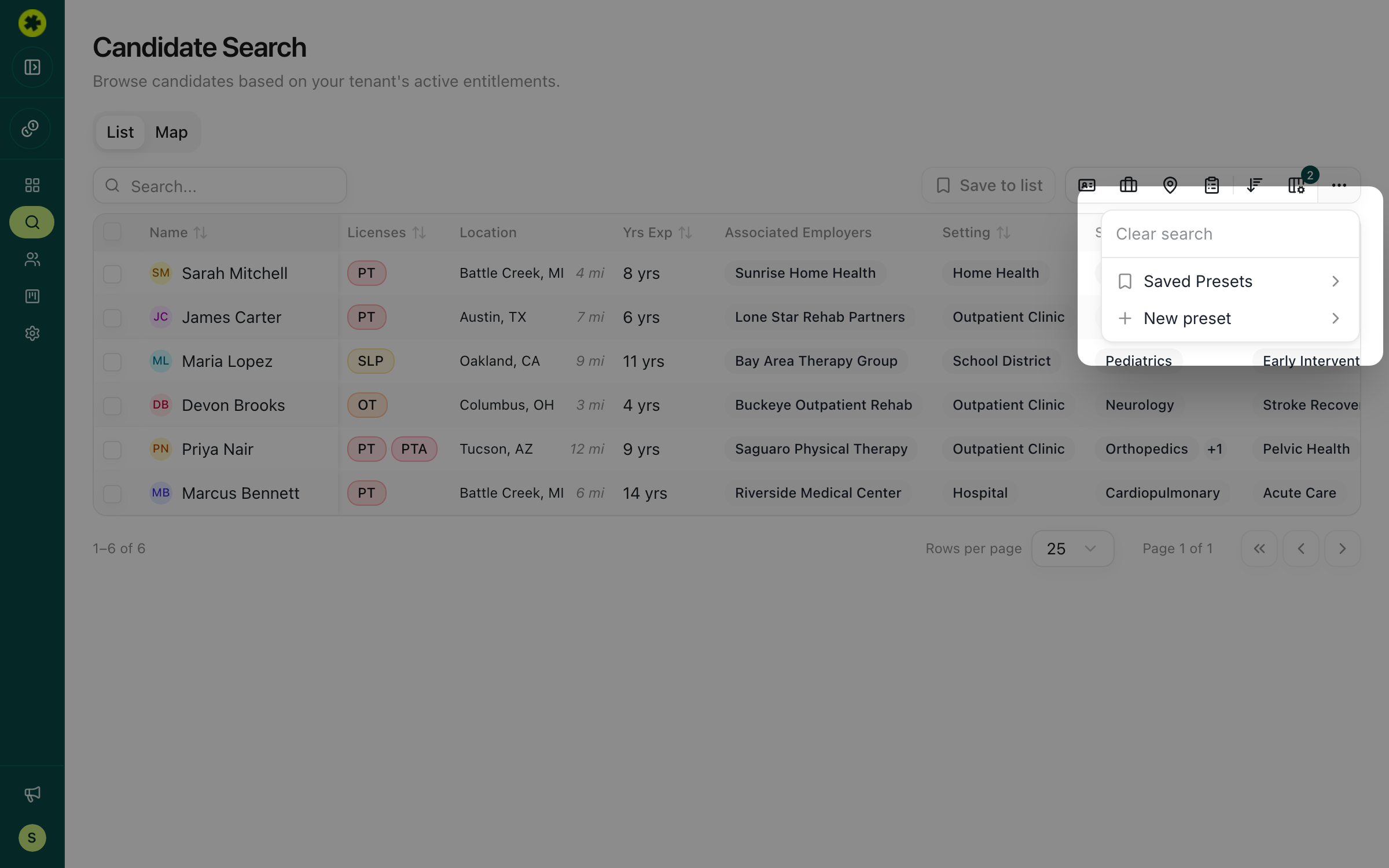
If you run the same search regularly, click the Search presets (···) button and choose New preset to save the current filters under a name — for example, "Active PT licenses in California." Reopen it any time from Saved Presets instead of rebuilding the filters.
Troubleshooting
Filters won't populate / every filter says "no options found."
You're on the Prospect Lists view, not Search. Click Search in the left sidebar — filtering by license, specialty, and location happens there, not inside a list.
Why does a candidate still show an old employer or location?
License and source data can lag behind real job changes, so the most recent employer may be slightly out of date. Treat employer as a strong signal rather than a guarantee.
I can't find candidates in a particular state.
You can only see candidates in the states your organization's plan covers. If a market is missing, it may need to be added to your plan — reach out to your Pickle contact.
Related articles
Build a shortlist of candidates to pursue
Save candidates from your search into a named list — one list or several — with duplicates handled automatically.
Contact Info & CreditsGet a candidate's contact info
Unlock verified email and phone for a single candidate or a whole batch at once.