Build a shortlist of candidates to pursue
Save candidates from your search into a named list — one list or several — with duplicates handled automatically.
A prospect list is where you collect the candidates you want to pursue and work as a team. Building one is two moves: create the list, then save candidates into it from Search. (Remember the model — you find people in Search and organize them in Lists.)
Create a list
Click Prospect Lists in the left sidebar, then New list in the top-right. In the dialog, give it a Name (required) and, optionally, a Description to remind teammates what it's for. Click Create list — it appears at the top of your lists with 0 candidates, ready to fill.
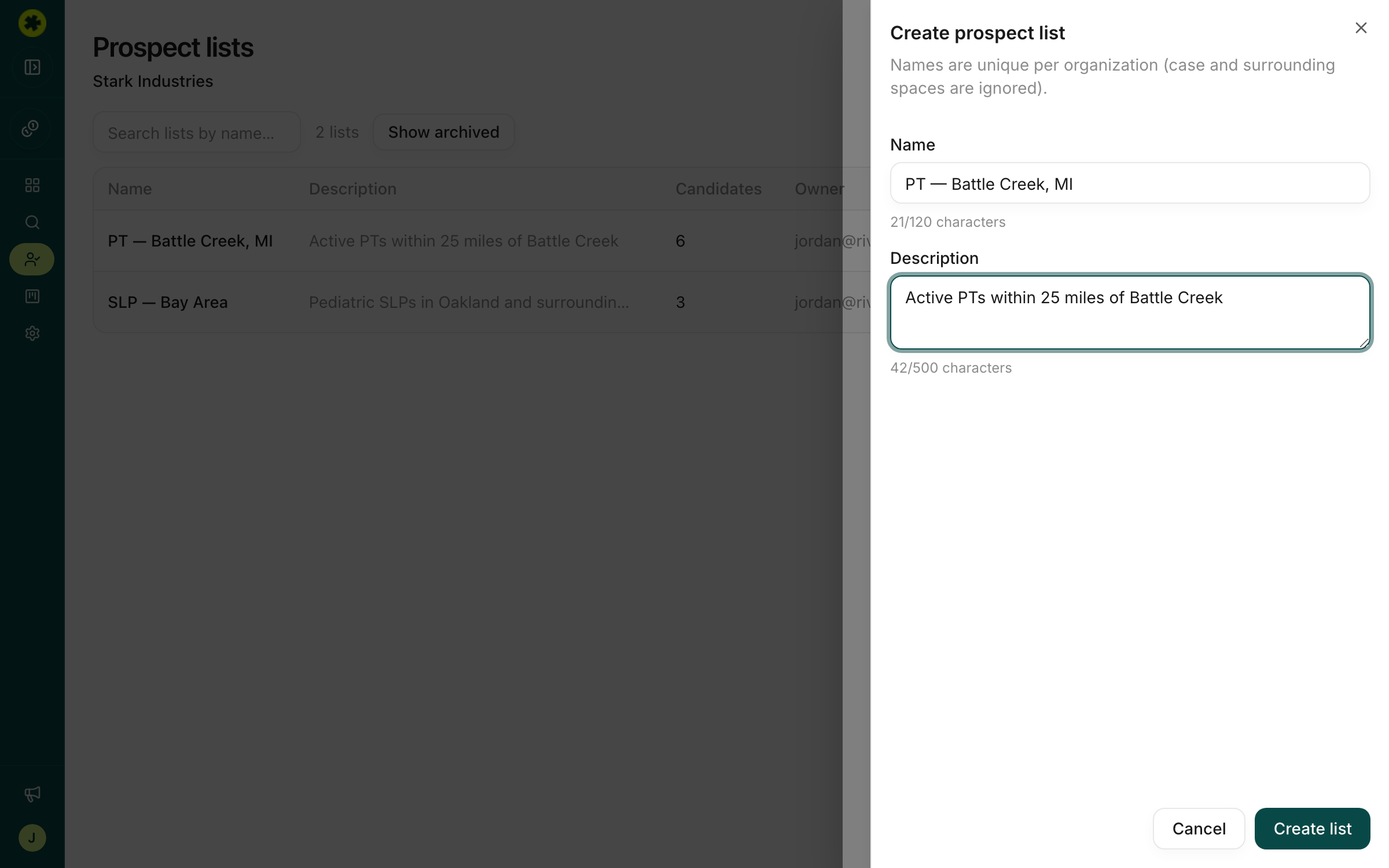
Tip: Name lists so they're easy to scan as they pile up — something like
[Role] - [City, State], or prefix with your initials, e.g.[MJ] PT - Fishersville, VA.
Add candidates from Search
Go to Search, filter down to the profile you want, then check the box next to each candidate you want to save (or use the header checkbox to select the whole page). Click Save to list in the toolbar — it shows how many you've selected — and pick your list from the dropdown.
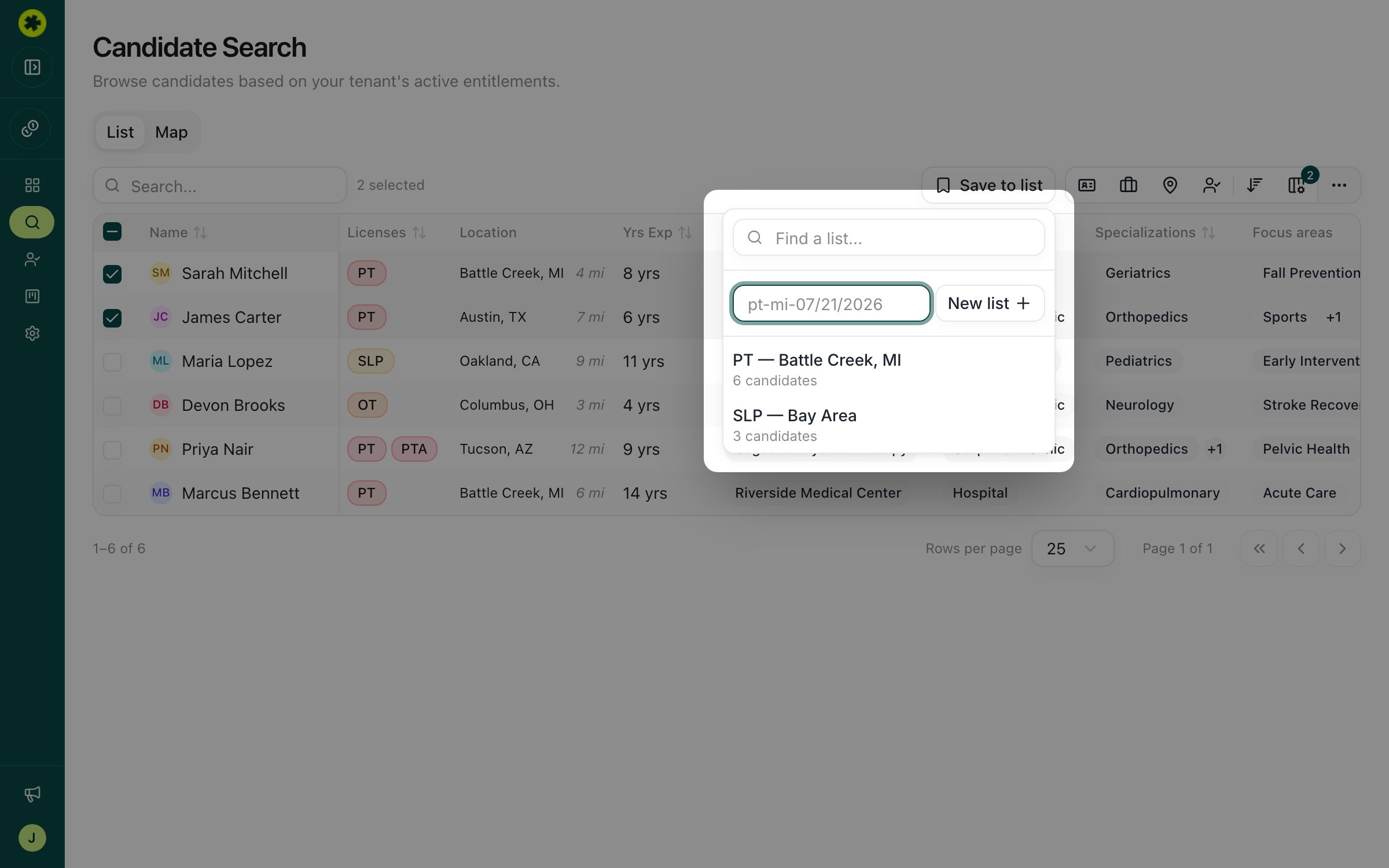
You don't have to create the list first: choose New list right inside that dropdown to make one on the spot without leaving your results.
Use more than one list
You can save the same candidates to several lists — just select them again and pick a different list. Adding someone who's already on a list won't create a duplicate; Pickle silently dedupes. After saving, the Prospect Lists column in your search results shows which lists each candidate belongs to.
Troubleshooting
I created a list but it has 0 candidates.
That's expected — new lists start empty. Populate it from Search: filter for the profile you want, select candidates, and click Save to list.
My selected candidates disappeared when I changed pages.
Selections are per page of results, so moving to another page clears them. Select and Save to list before you paginate.
Related articles
Search for clinicians in your market
Build a targeted search by location, license, specialty and experience to surface the clinicians who fit your role.
Managing ProspectsKeep your lists organized and focused
Filter a list by status, tags, and contact data, tag your prospects, and rename, archive, and restore lists to keep your workspace tidy.
Contact Info & CreditsGet a candidate's contact info
Unlock verified email and phone for a single candidate or a whole batch at once.