Share a candidate with a teammate
Copy a direct link to a specific prospect that only people in your organization can open.
When you want a teammate to look at a specific candidate — a handoff, a second opinion, a "can you call this one?" — you can copy a direct link straight to that prospect instead of explaining where to find them.
Copy the link
Open the candidate in a prospect list to bring up the Candidate details panel, then click the Copy link icon in the panel header. A confirmation toast lets you know the link is copied and that only people in your organization can open it. Paste it into Slack, email, or wherever your team talks.
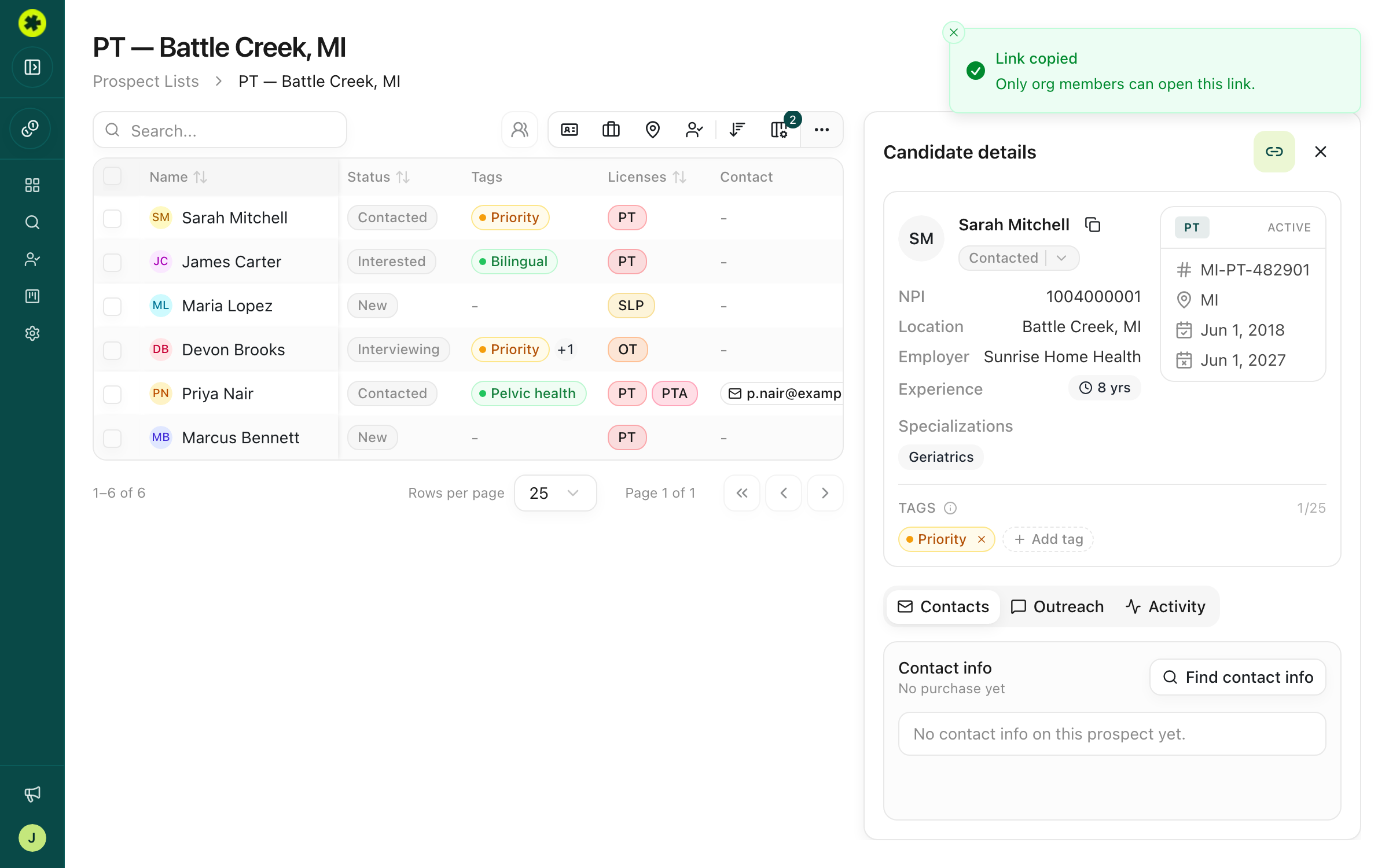
Who can open it
The link is internal-only — it drops the recipient straight onto that prospect, but only if they're signed in to Pickle in the same organization. It isn't a public link: anyone signed out is sent through sign-in first, and someone from a different organization won't be able to open it.
Troubleshooting
I don't see a Copy link button.
The button only appears for a candidate you've saved to a list (a tracked prospect), in the Candidate details panel. You won't see it on raw Search results — save the candidate to a list first.
My teammate can't open the link I sent.
They need to be signed in to Pickle in the same organization as you. The link doesn't grant any new access — it just points to the prospect, and existing permissions still apply.
Related articles
Build a shortlist of candidates to pursue
Save candidates from your search into a named list — one list or several — with duplicates handled automatically.
Managing ProspectsTrack where each candidate stands
Move candidates through your stages — New through Hired — individually or in bulk, so your team shares one view.