Size up a market on the map
See where clinicians are concentrated to confirm geographic fit and gauge how deep a market is.
The map view turns your search results into a geographic picture — useful for confirming a clinic is in a viable area and seeing how many candidates a market really holds before you invest in outreach.
Switch to Map view
Above the results table, use the List / Map toggle and choose Map. Your current search — with all its filters — is plotted geographically.
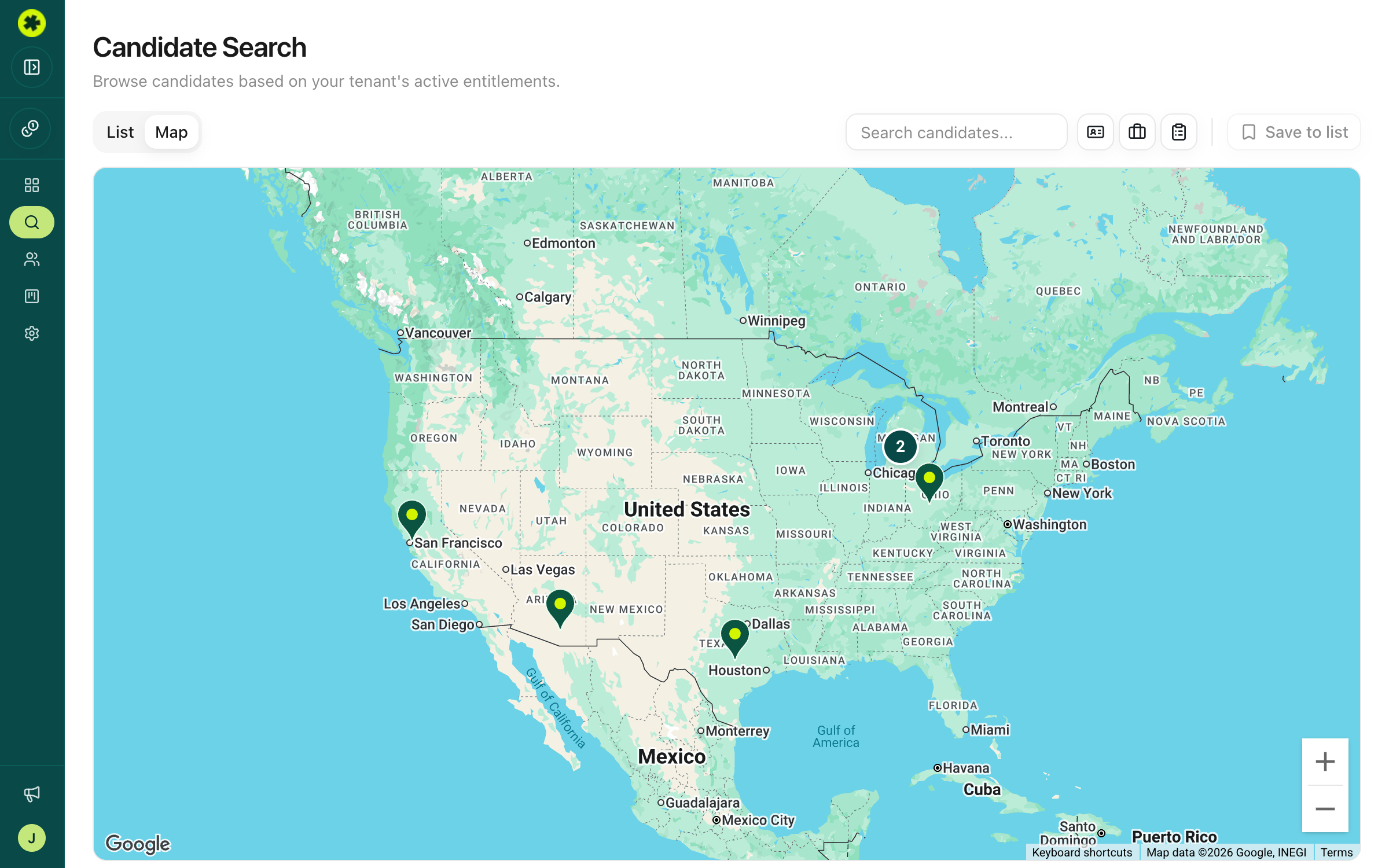
Set your area
Click the Geography filters button (pin icon), enter a city or address, and drag the Radius slider to set how far out to look. The map centers on that point and shows the candidates within range.
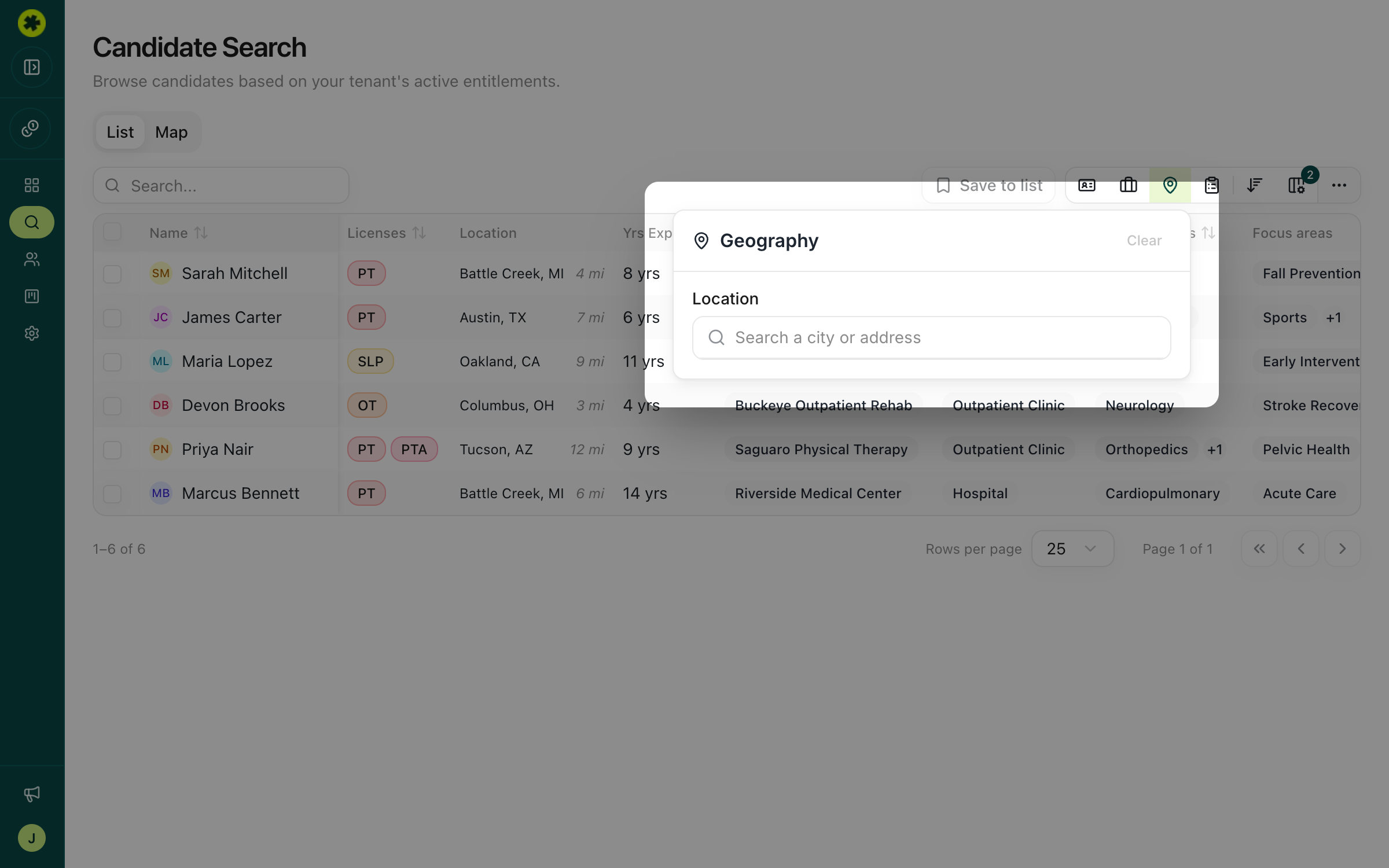
Read the density
Nearby candidates group into clusters; the numbers tell you where clinicians are concentrated. Click a cluster or pin to see the individual candidates at that location. Sparse areas are just as informative — they tell you a market may be too thin to staff from.
Narrow and save
Layer on license, specialty, or experience filters to see how the map thins out as you get specific, then check the promising candidates and Save to list to pursue them. See build a shortlist of candidates.
Troubleshooting
The map won't load / says a map preview is unavailable.
This is a map configuration issue on the account, not your search. Reach out to your Pickle contact so it can be enabled.
The map shows fewer candidates than the list.
The map view loads a capped set of candidates for performance, so very large result sets show a subset. Tighten your filters (or zoom into a smaller area) to see the people you care about.
Related articles
Search for clinicians in your market
Build a targeted search by location, license, specialty and experience to surface the clinicians who fit your role.
Managing ProspectsBuild a shortlist of candidates to pursue
Save candidates from your search into a named list — one list or several — with duplicates handled automatically.