Connect and push to your ATS
Link your ATS or CRM and push candidates straight into it — no manual CSV import.
Once you've built a shortlist, you can push candidates straight into your ATS or CRM instead of exporting a file and importing it by hand.
Connect your ATS (once)
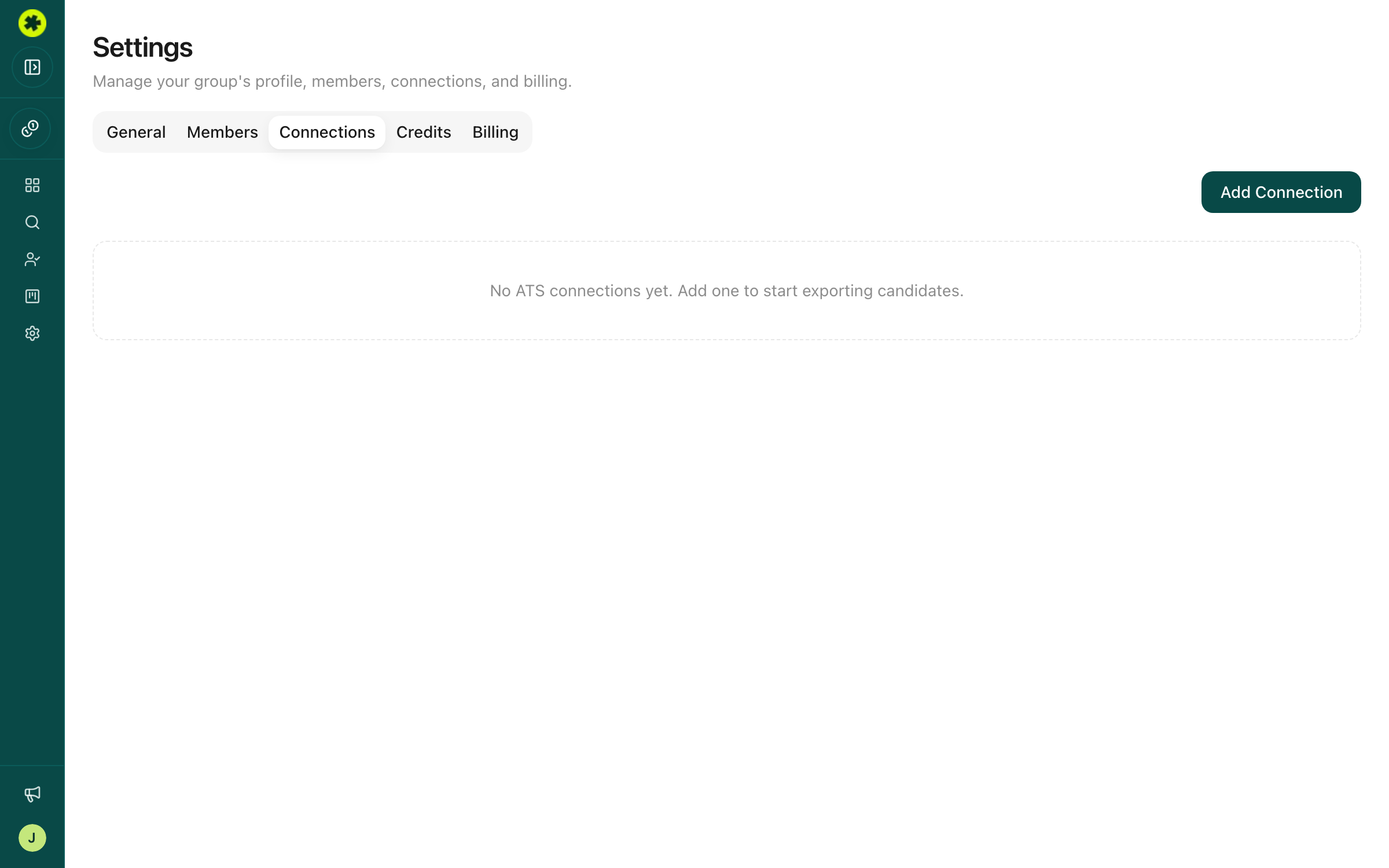
Go to Settings → Connections and click Add Connection. Self-serve integrations connect in one of two ways:
- Workable and Recruit CRM ask for credentials — a subdomain and an API key for Workable, an API key for Recruit CRM. You generate the key inside that system and paste it into Pickle.
- Lever and HubSpot use OAuth. Rather than handling a key, you click Connect with Lever or Connect with HubSpot, sign in, and approve access — the same flow as "Sign in with Google." There's no key to find, copy, or rotate, and you can revoke Pickle's access from the other system at any time. For the full walkthroughs, see Connect Lever and push to a posting and Connect HubSpot and push contacts.
Only Owners and Admins can add connections, and once saved a connection is reusable from any prospect list.
Beyond the self-serve options, Pickle can connect to 200+ ATS and CRM systems. If yours isn't in the Add Connection list, reach out to the Pickle team using the Contact us button in the sidebar and they'll set it up for your company.
Push candidates
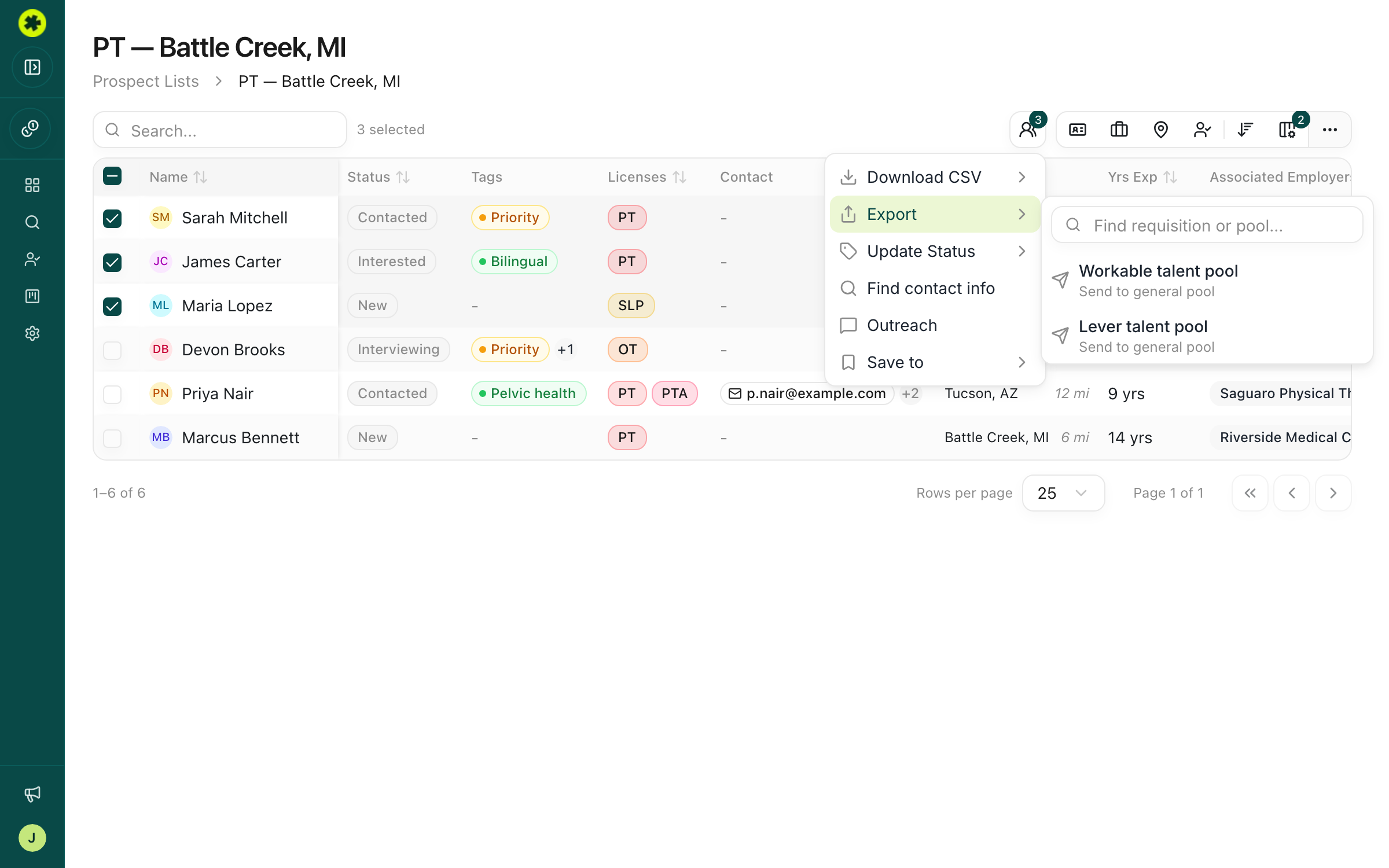
Open a prospect list, select the candidates you want, then click Actions → Export and choose your connection. Pickle sends those prospects to your ATS and confirms with a message showing how many went across, plus the reason for any it couldn't send. Exporting doesn't change a candidate's status in Pickle — if you want to track who's already been pushed, set their status yourself. (Recruiters can use connections that are already set up, even if they can't add new ones.)
What gets sent
Each prospect's name, license, location, and specializations go across, along with their contact info — email, phone, and social profiles — wherever you've unlocked it. For candidates without an email address, Pickle fills in a placeholder so your ATS still accepts the record.
Troubleshooting
The Export menu says "No ATS connections yet."
There's no connection set up yet. An Owner or Admin needs to add one under Settings → Connections first — or contact the Pickle team to enable your ATS.
My ATS isn't in the Add Connection list.
Workable, Lever, HubSpot, and Recruit CRM are self-serve today, but Pickle supports 200+ ATS and CRM integrations. Reach out to the Pickle team (Contact us in the sidebar) to turn yours on. In the meantime, you can export a CSV and import it.
I can't add a connection.
Only Owners and Admins can manage connections. If you're a Recruiter, you can still use connections that are already set up — ask an admin to add the integration.
Related articles
Connect Lever and push to a posting
Link Lever once, then send prospects into Lever — to the general pool or straight onto an open posting.
Exporting & ATSConnect HubSpot and push contacts
Link HubSpot once, then send prospects in as contacts — matched on email so existing records get updated.
Exporting & ATSExport candidates to a spreadsheet
Download your prospects as a CSV in a ready-to-import format for a client, a spreadsheet, or your ATS.